Playfield
How to draw and use a playfield in The Prey: define the GPS boundary polygon, learn the map gestures, save playfields, and start a game from one.
What Is a Playfield?
A playfield is a GPS polygon: a closed boundary drawn on a map that defines the valid game area. Players must stay within it during the hunt.
Playfields are created before the game and can be saved and reused for future sessions.
Creation Steps
- Open New Playfield in the app.
- The map centers on your current GPS position.
- Tap the map to place each vertex of your boundary polygon.
- Place at least three vertices to form a valid polygon. Confirm when done.
- Name the playfield and tap Save.
Your saved playfields appear in the Playfield list and can be selected when starting a new game.
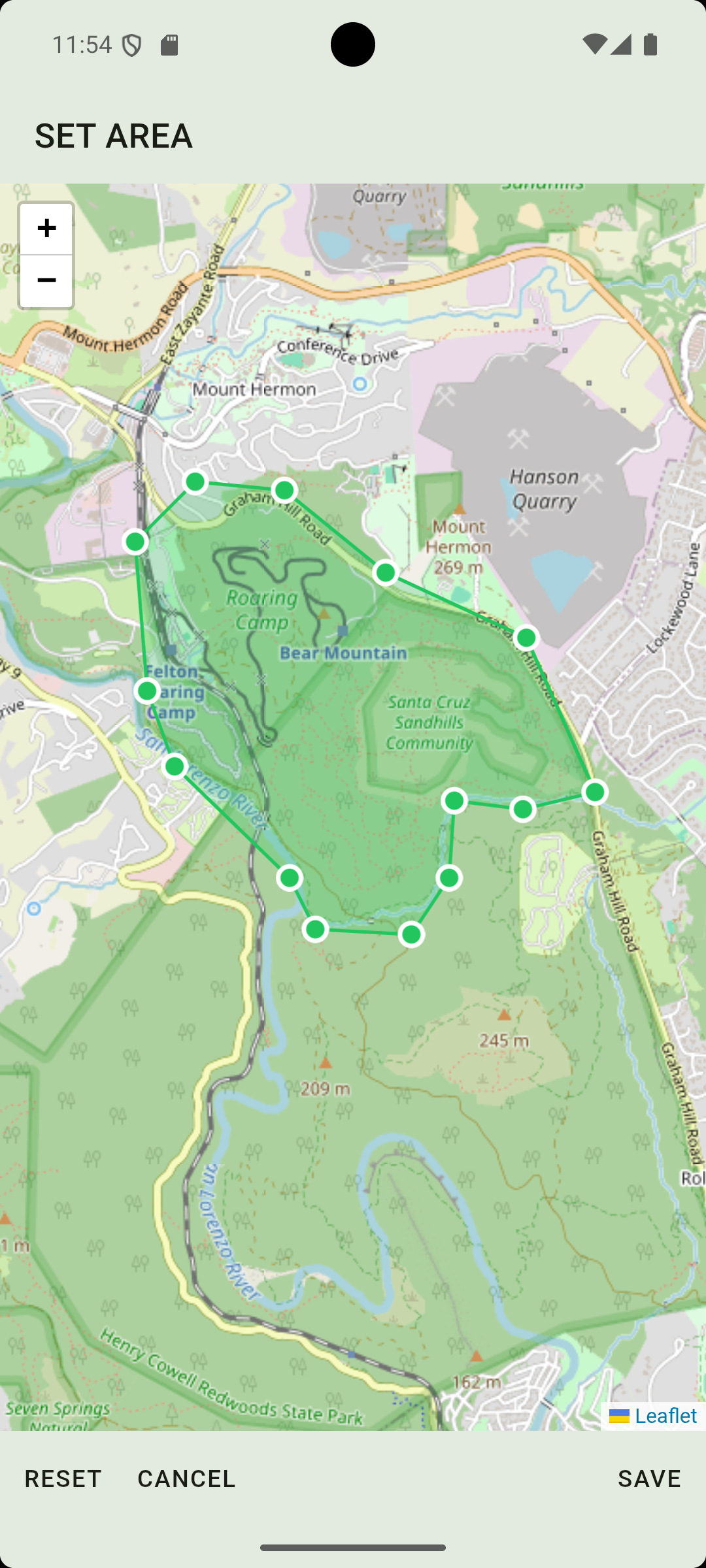
Map Gestures
| Gesture | Action |
|---|---|
| Tap map | Place a new vertex |
| Drag vertex | Reposition a placed vertex |
| Pinch | Zoom in / zoom out |
| Tap vertex | Select it, then tap the trash button to remove it |
Leaving the Boundary: the Penalty
The playfield boundary is enforced automatically during a game. When the Game Creator enables boundary penalties, any player who steps outside the polygon is penalised by the game.
While a penalty is active:
- The penalty lasts 5 minutes from the moment you cross the boundary.
- Your live position is broadcast continuously for the whole penalty, instead of only at the normal reporting interval. For Prey this means the Hunter can see exactly where you are the entire time you are out, and you lose the gaps between location pings that normally keep you hidden.
- Returning inside the boundary does not clear an active penalty early; it simply stops new penalties from being applied.
The penalty can be enabled separately for Prey and for the Hunter when the game is configured.
Making a Playfield Public
By default a playfield is private, so only you can use it. You can share a playfield with the wider community by switching it to public, but the public toggle only unlocks when the name follows the listing convention:
CC, City, Fieldname
- CC: a country code of 2 to 4 uppercase letters (e.g.
NL,USA). - City: the city, starting with a capital and using ordinary city-name characters only (no special symbols).
- Fieldname: the name of the field; ordinary characters, with ampersands (
&) and dashes (-) allowed.
For example: NL, Amsterdam, Vondelpark Arena.
Name your playfield this way and the Public switch becomes available. If you rename it so it no longer matches, the playfield is automatically set back to private before the switch is locked again. This keeps public playfields consistently named and easy to find for other players.
Starting a Game from a Playfield
Open a saved playfield and tap Start Game. This creates a game session linked to that boundary. Invite players with the generated join code, assign roles in the lobby, and launch.